How to Defer Non‑Critical CSS in WordPress: Techniques to Optimize Render-Blocking CSS
Having a fast WordPress site is crucial for user experience and SEO. One key area to optimize is how your CSS styles are delivered. Render-blocking CSS can significantly impact your page speed and Core Web Vitals, especially your Largest Contentful Paint (LCP) and First Contentful Paint (FCP) scores.
Deferring non-critical CSS helps eliminate render-blocking resources, ensuring that only the necessary CSS for above-the-fold content is loaded initially. The rest can then be loaded asynchronously, improving page load times and overall performance. Let’s explore methods to defer non-critical CSS in WordPress effectively!
What “Defer Non‑Critical CSS” Means (and Why It Matters)
Deferring non-critical CSS in WordPress is a technique to optimize CSS delivery. This means prioritizing the CSS needed for the initial viewport and loading the rest later. By addressing render-blocking CSS, you can significantly speed up your WordPress site and improve speed scores.
Understanding Render-Blocking Behavior
When a browser encounters a CSS file in the HTML, it stops rendering the page until that CSS file is downloaded and parsed. This render-blocking behavior delays the display of content, negatively impacting user experience. This is why it’s crucial to defer render-blocking CSS that isn’t immediately needed.
Importance of Optimizing CSS Delivery
Optimizing CSS delivery reduces the impact of render-blocking resources and improves Core Web Vitals. Techniques like deferring non-critical CSS or inlining critical CSS can boost page speed and enhance user experience on your WordPress site. Optimizing CSS is a key aspect of overall website optimization.
Critical CSS vs Non-Critical CSS (Quick Refresher)
Here’s a quick breakdown to differentiate critical CSS from its counterpart. Critical CSS encompasses:
- The CSS needed to render the above-the-fold content.
- The portion of your website visible when it first loads.
Non-critical CSS, in contrast, styles elements below the fold or those not immediately visible.
Above-the-Fold vs the Rest
Think of above-the-fold content as what users see first without scrolling. Critical CSS styles this initial view, ensuring a fast first impression. Everything else, like styles for footers, sidebars, or sections further down the page, falls into the non-critical CSS category and can be deferred.
Impact on Core Web Vitals
Loading non-critical CSS asynchronously has a direct, positive impact on Core Web Vitals, particularly Largest Contentful Paint (LCP) and First Input Delay (FID). By reducing render-blocking time, you enhance the initial user experience and signal to Google that your WordPress site is optimized for speed.
Method 1: Fully Automatic (Recommended) — Async CSS Loader with CriticalCSSGenerator
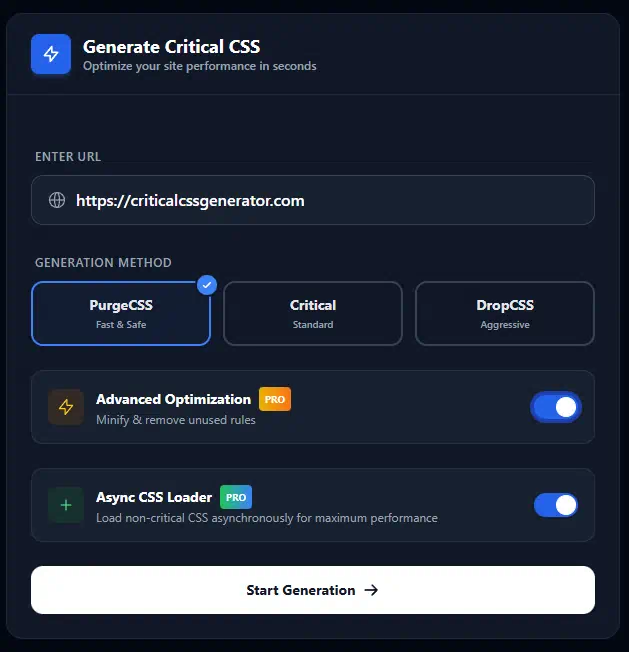
For a hassle-free solution, consider using an automatic tool like CriticalCSSGenerator with its Async CSS Loader feature. This is the easiest way to load non-critical CSS asynchronously without manually tweaking code, making it perfect for WordPress site owners who want to optimize without diving deep into technical details.
Using CriticalCSSGenerator for Async Loading
CriticalCSSGenerator offers a feature called “Async CSS Loader” specifically designed to load non-critical CSS asynchronously automatically. This method allows you to optimize your CSS on WordPress without manual coding. This plugin that automatically defers loading is a great optimization.
Implementation Steps: Adding Critical CSS
Here’s how to implement the workflow. It involves a few simple steps:
- Use CriticalCSSGenerator and choose the “Async CSS Loader” option.
- Include the provided Javascript file (JS) in your HTML, typically in the
<head>section. - Inline the generated critical CSS in the
<head>.
The result is that non-critical CSS loads async automatically.
What You Need to Do: Checklist
Here’s a quick checklist to get you started:
- Generate Critical CSS using criticalcssgenerator.com.
- Choose the “Async CSS Loader” option.
- Include the provided Javascript file in your
<head>. - Add the generated Critical CSS in your
<head>.
If you want the safest automated setup to optimize your CSS and defer render-blocking CSS, CriticalCSSGenerator’s Async CSS Loader is the way to go.
Method 2: Manual Async CSS Loading (Code-Based)
While plugins offer convenience, manually implementing async CSS loading gives you greater control. This method is ideal for developers comfortable with code and allows precise control over how your CSS stylesheets are loaded. You can truly optimize your CSS and Javascript with manual coding.
Preload + Onload Swap Technique
The preload and onload swap technique is a popular method to defer CSS. You tell the browser to preload the CSS file but not render it immediately. Once preloaded, it swaps into action. This optimizes loading order, preventing render blocking CSS. This technique helps improve your WordPress site’s page speed.
JS-Based Stylesheet Loader Approach
Another manual method involves using JavaScript to load CSS stylesheets asynchronously. With this approach, a small snippet of JavaScript dynamically creates a <link> tag and injects it into the <head> of your HTML document. This ensures that the CSS file is loaded without blocking the browser. It also helps improve PageSpeed Insights scores.
Code Snippets and Placement in WordPress
For the preload + onload swap, add this to your <head>: <link rel="preload" href="style.css" as="style" onload="this.onload=null;this.rel='stylesheet'"> <noscript><link rel="stylesheet" href="style.css"></noscript> . Place this code in your theme’s header file or use a plugin that allows adding custom code to the <head>. The same goes for the Javascript method. Just be sure it’s loading efficiently.
Method 3: Using WordPress Performance Plugins (Pros/Cons)
Many WordPress plugins offer features to optimize CSS delivery, providing a middle ground between fully automatic and manual methods. These plugins aim to defer non-critical CSS in WordPress without requiring extensive coding. Using a cache plugin can often help defer render blocking CSS.
Common Features of Optimization Plugins
Common optimization features found in WordPress plugins often target CSS delivery. These features include options to:
- Defer CSS
- Remove Unused CSS
- Generate Critical CSS
They can significantly improve page speed and Core Web Vitals by addressing render-blocking issues and optimizing CSS delivery, representing a good way to optimize CSS with plugins.
Potential Conflicts and Issues
While plugins can simplify the optimization process, it’s crucial to avoid conflicts or double async/defer implementations. Using multiple plugins with overlapping functionality can lead to unexpected behavior or even break your site’s layout. So it’s important to be careful when choosing WordPress plugins for optimization.
Implementation in WordPress (Practical Placement)
Regardless of the method you choose, proper placement of your code snippets or plugin settings is crucial for effective optimization. You need to ensure your styles are loading in an efficient manner.
Where to Place Code: Options Explained
You can add custom CSS code to your child theme’s functions.php file, create a custom plugin, use a header/footer injection plugin, or leverage WordPress hooks. Each option has its pros and cons, so choose the one that best fits your comfort level and the complexity of your required modifications. This is where you can add custom CSS.
Considerations: Caching, Minification, and CDN
Don’t forget about caching, minification, and CDN! These technologies work hand-in-hand with CSS optimization to deliver the fastest possible experience to your users. Ensure your cache plugin is properly configured, your CSS and JS files are minified, and you’re leveraging a CDN for global content delivery. Minify CSS to optimize your CSS.
How to Test (and Verify It’s Working)
Using PageSpeed Insights for Verification
To ensure your efforts to defer non-critical CSS in WordPress are paying off, use tools like PageSpeed Insights. It’s a key step in verifying your CSS and JavaScript are optimized. This helps check your site’s performance improvements. These tools provide valuable insights into your site’s speed scores.
What to Look For: Key Indicators of Success
Look for a reduction in “Eliminate render-blocking resources” warnings in PageSpeed Insights. A stable layout, free from flashing or shifting elements, is another sign of success. Stable layout ensures that the non-critical CSS and critical CSS are loading in the correct order. You want to optimize CSS to ensure this.
Troubleshooting & Common Issues
FOUC and Missing Fonts: Common Problems
One common issue when deferring CSS is FOUC (flash of unstyled content), where the page initially loads without styles. Missing fonts can also be a problem. To resolve FOUC, ensure your critical CSS covers all above-the-fold elements. Ensure that the non-critical CSS is loading correctly to avoid font loading issues. Make sure your WordPress site is loading quickly.
Solutions for Late-Loading Elements
If you notice elements like icons or animations loading late, it indicates that their associated CSS is being deferred for too long. To fix this, ensure that the critical CSS includes the necessary CSS rules for these elements, or adjust your deferral strategy to load these assets earlier. Be mindful of WordPress site speed.
FAQ
Is Preload the Same as Async?
No, preload and async are different. Preload tells the browser to download a resource but doesn’t necessarily change the loading order. Async, on the other hand, loads the resource without blocking the browser. So they defer loading in different ways. Both preload and async can improve performance for your WordPress site and avoid render blocking CSS.
Will This Hurt CLS?
If done incorrectly, deferring CSS can hurt Cumulative Layout Shift (CLS). To avoid this, ensure that your critical CSS is comprehensive and that deferred styles don’t cause significant layout changes when they load. Optimize CSS with deferring correctly to avoid such issues. Prioritize stable layouts and minify CSS.
Do I Still Need Critical CSS?
Yes, you still need critical CSS when deferring non-critical CSS. Critical CSS ensures that the above-the-fold content is styled correctly from the start, preventing FOUC and improving the initial user experience. Critical CSS and defer render blocking CSS work hand in hand to optimize your CSS.
Next Steps
Use CriticalCSSGenerator.com Async CSS Loader for Automated Setup
For the easiest and most reliable solution, use CriticalCSSGenerator with its Async CSS Loader feature. It automates the process of loading non-critical CSS asynchronously, ensuring optimal performance without manual coding. It’s a great tool to optimize your CSS for your WordPress site and defer render blocking CSS. This plugin that automatically optimizes makes for a light weight plugin.